Saving replies to documents and your profile
Copy a reply, save it as a document, save a whole chat, or save suggested details to your brand profile.
Written By Jason
Last updated About 7 hours ago
When an assistant writes something you love, a product description, a launch email, a caption series, save it so it doesn't get lost in your chat history.
Open in Desire AI: Your Documents
Buttons under each reply
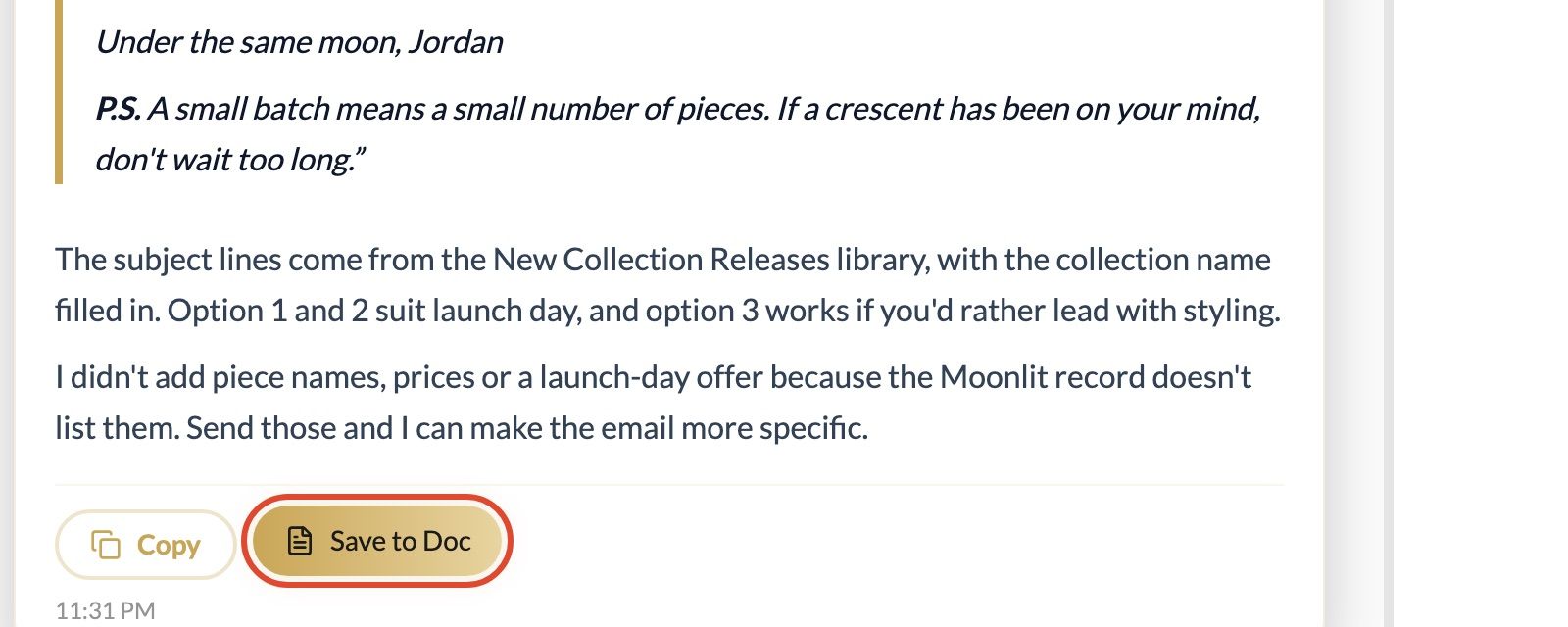
Copy: copies the reply so you can paste it into Shopify, your email platform or Instagram.
Save to Doc: saves the reply as a new document in your Documents panel, with a suggested title you can change. It's saved to the brand you're working on.
Save to Profile: appears only when the assistant suggests new details for your brand profile, for example after Brand Voice helps you describe your tone. Click it to review and save those details to your profile.
Save the whole conversation
Click Save All in the chat header to save the entire conversation as one document. It's handy after a long brainstorm or planning session.
Where saved replies go
Saved documents appear in the Documents panel on the right. From there you can edit them, move them into folders and export them as PDF, Word or Markdown. See Documents: create, organize and export.
Tip
Assistants can find and use your saved documents in future chats. Saving your best work helps them learn what "good" looks like for your brand.
Was this helpful?
Still need help? Ask the team