My Files and the Document Processor
Upload files, paste text or import your website so every assistant can use it, and pull brand details straight into your profile.
Written By Jason
Last updated About 7 hours ago
Already have a brand guide, an old About page or a list of product descriptions? Bring them into Desire AI once, and every assistant can use them.
Open in Desire AI: My Files · Import Website · Document Processor
My Files
Open the account menu and choose My Files (or go to My Profile & Brands, then Library, then My Files).
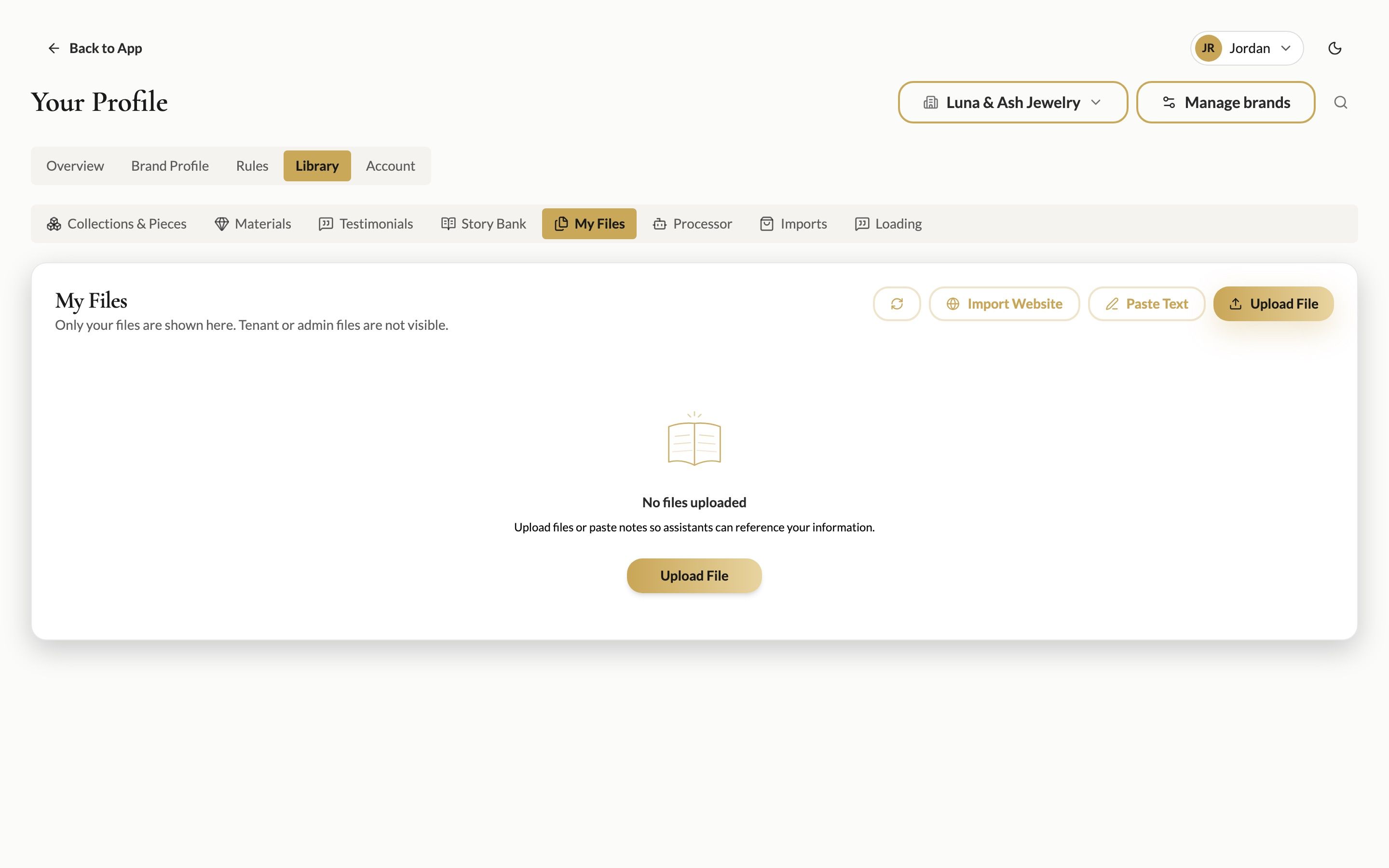
There are three ways to add content:
Upload File: PDF, Word (.docx, .doc), Excel (.xlsx, .xls), PowerPoint (.pptx, .ppt), CSV, text (.txt, .md), HTML, XML or JSON.
Paste Text: paste anything and give it a name.
Import Website: enter your website address and Desire AI fetches your public pages for you.
New files show Processing for a moment while they're prepared. After that, assistants can search them when they answer you. If you upload something you already have, you'll see a duplicate warning.
Use View to read a file and Edit text to correct it. My Files is private to you.
The Document Processor
The Document Processor reads a long document and pulls out what's useful. Open it from Library → Processor, from Open Document Processor in the sidebar, or with the document button in the chat message box.
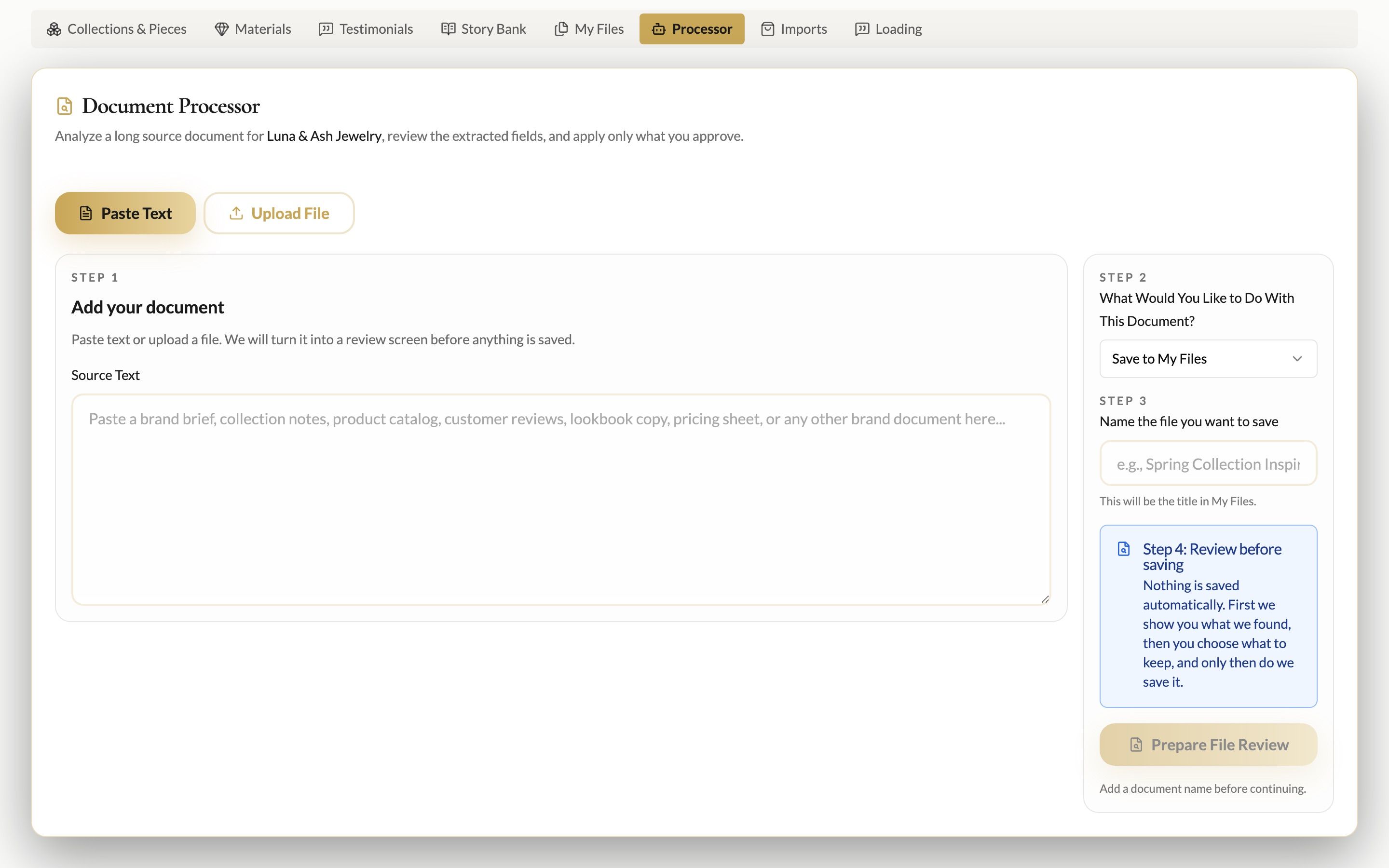
Upload or paste your document.
Choose what to do with it:
Extract to Brand Profile: finds answers to your brand profile fields (your mission, your dream client, your voice) and shows them for review. Nothing is saved until you approve it.
Save to My Files: keeps the document so assistants can refer to it.
Tip: run your old brand guide through Extract to Brand Profile. It's the fastest way to get your profile from 0% to well over half.
The Document Processor works on the brand that's currently selected, so check Active Brand first.
Was this helpful?
Still need help? Ask the team