A quick tour of Desire AI
Find your way around the chat workspace, your assistants, your documents and the account menu.
Written By Jason
Last updated About 7 hours ago
Desire AI gives your jewelry brand a team of AI assistants who already know your brand: your voice, your dream client, your collections and your plans. This tour shows you where everything lives so you can get to work in minutes.
Open in Desire AI: Your workspace · My Profile & Brands · Planning
The workspace
After you sign in you land in the chat workspace. It has three areas.
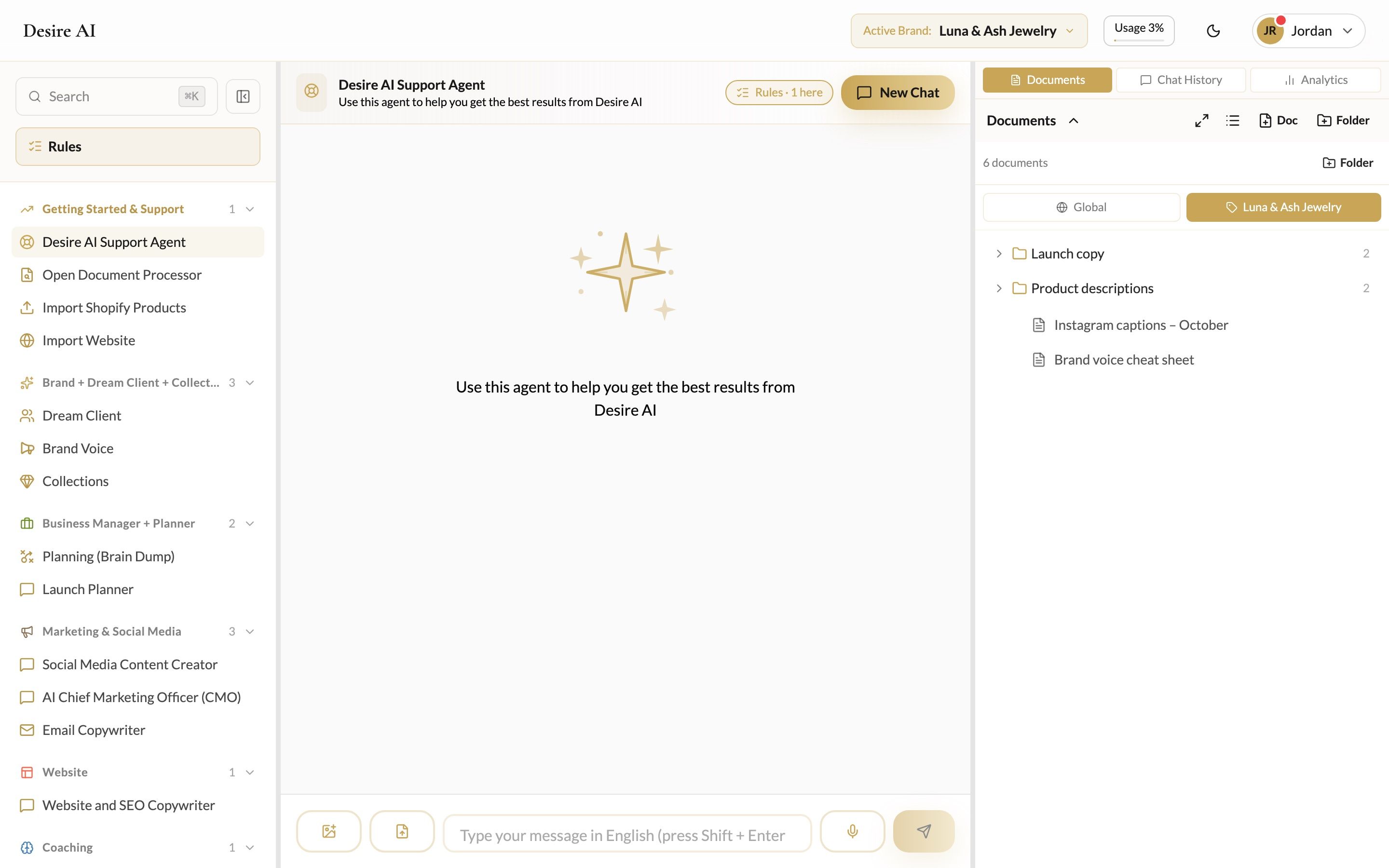
- Assistants (left). Your assistants are grouped by what they help with: Getting Started & Support, Brand + Dream Client + Collections, Business Manager + Planner, Marketing & Social Media, Website and Coaching. Click a name to start working with that assistant. Search ⌘K at the top finds anything in your account.
- Chat (middle). This is where you talk with the assistant you picked. Type in the box at the bottom and press Enter to send. New Chat starts a fresh conversation.
- Documents, Chat History and Analytics (right). Keep your saved copy in Documents, reopen earlier conversations in Chat History, and upload your social or sales numbers in Analytics.
The top bar
- Active Brand shows which brand you're working on. Everything you do (chats, documents, plans) belongs to that brand. If you run more than one brand, switch here.
- Usage shows how much of this week's included AI usage you've used.
- The moon or sun icon switches between dark and light mode.
- Your name opens the account menu.
The account menu
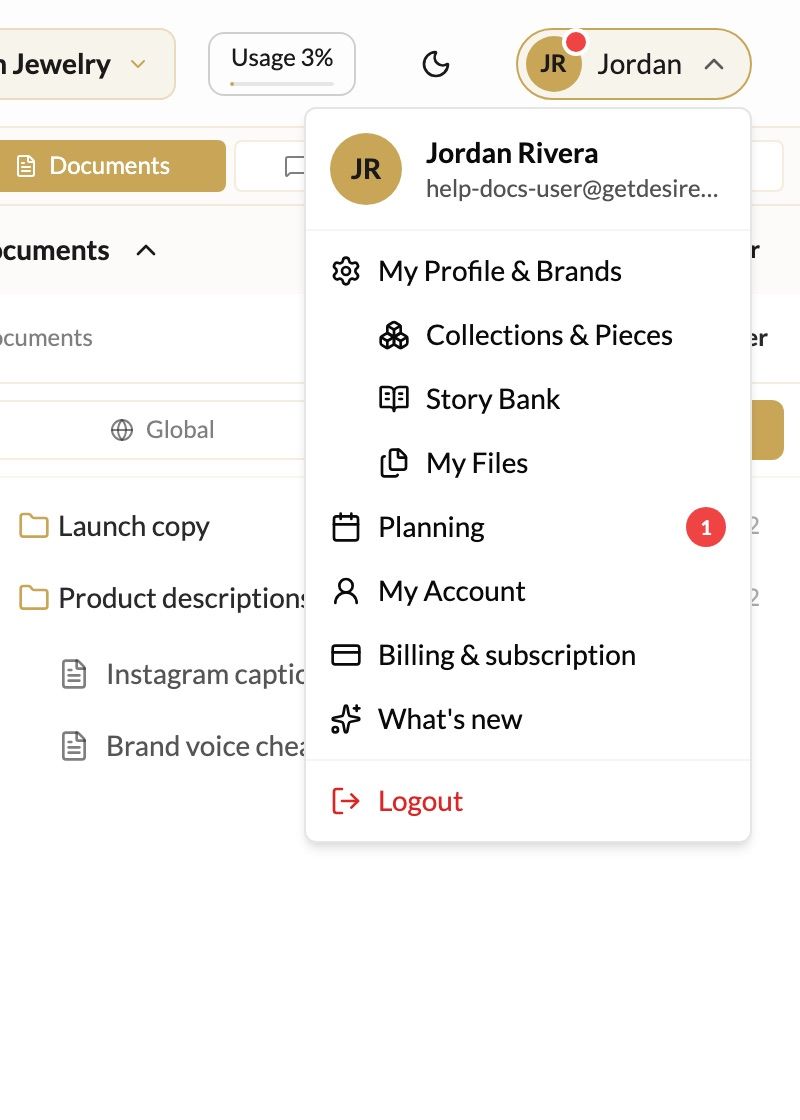
- My Profile & Brands: your brand profile, rules and library (collections and pieces, Story Bank, My Files).
- Planning: your tasks, launch plans and content plans. A red number means something is overdue or due soon.
- My Account: your name, password, language, timezone and currency.
- Billing & subscription: your membership, invoices and extra usage.
- What's new: the latest improvements to Desire AI.
Where to start
- Spend a few minutes on your brand profile. Every assistant reads it, so this one step improves every answer. See Set up your brand profile.
- Not sure which assistant to use? Start with the Desire AI Support Agent at the top of the list, or read Which assistant should I use?
Was this helpful?
Still need help? Ask the team