Finding, renaming and archiving past chats
Use Chat History to pick up where you left off, and keep your list tidy.
Written By Jason
Last updated About 7 hours ago
Every conversation is saved automatically, so you can come back to it any time.
Open in Desire AI: Chat History
Open Chat History
Choose the assistant you talked with in the left sidebar.
Click Chat History at the top of the right-hand panel.
Click a conversation to reopen it and carry on.
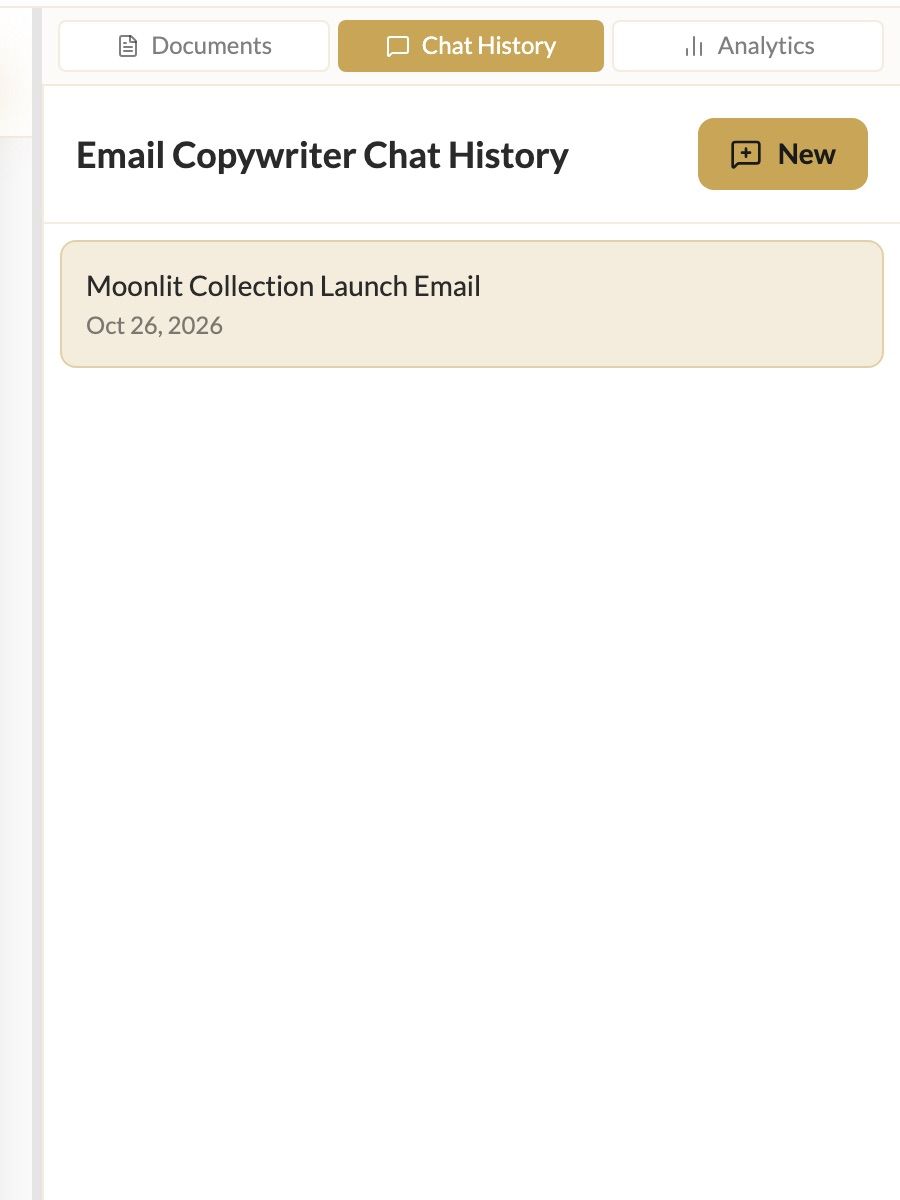
Chat History shows conversations for the assistant and brand you're on right now. Can't find a chat? Check you've selected the right assistant and the right brand at the top of the screen.
Click New to start a fresh conversation with the same assistant.
Rename, archive or delete
Hover over a conversation to see its options:
Rename: give it a name you'll recognize, like "Moonlit launch email v2."
Archive: hide it from the list without deleting it.
Delete: permanently removes it. You'll be asked to click again to confirm, and deleted chats can't be recovered.
Search across all chats
Press ⌘K (Mac) or Ctrl+K (Windows) and type a word from the conversation. Search looks across every assistant. See Find anything fast with ⌘K.
Was this helpful?
Still need help? Ask the team