Set up your brand profile
Your brand profile is what every assistant reads before it answers. Here's how to fill it in quickly.
Written By Jason
Last updated About 8 hours ago
Your brand profile is the single most important thing you can set up in Desire AI. Every assistant reads it before answering, so a product description for your moonstone ring sounds like you, speaks to your dream client, and never uses words you'd never say.
Open in Desire AI: Profile overview · Brand Profile
Open your profile
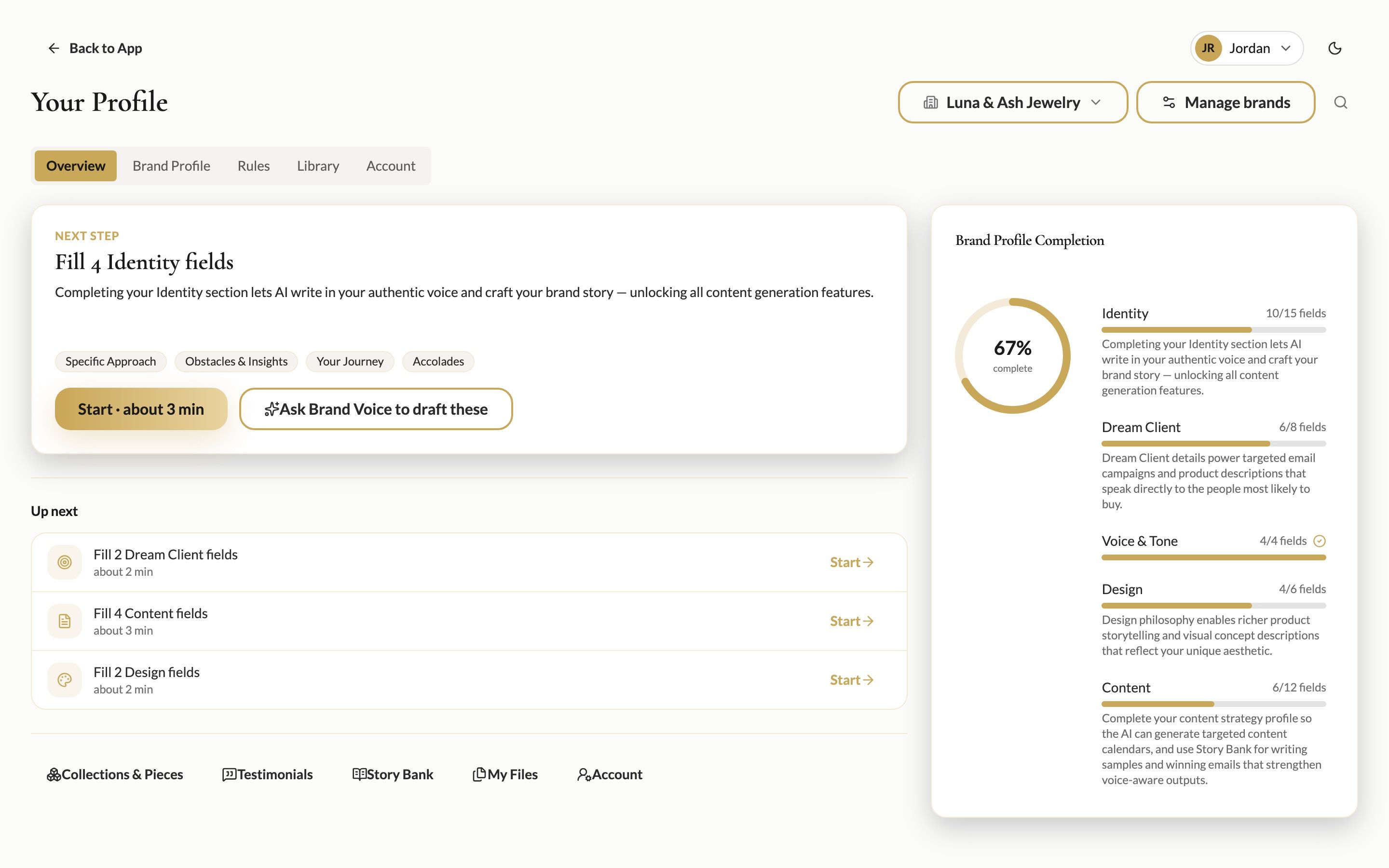
Click your name in the top-right corner and choose My Profile & Brands. The Overview tab shows how complete your profile is and what to do next.
Start with three quick answers
A brand-new profile opens with Start here: three questions that take about 3 minutes.
Brand Name: your business or brand name.
What You Do: a sentence about your craft, for example "Handmade celestial jewelry in recycled sterling silver and 14k gold-fill."
Dream Client Profile: who you make jewelry for, what they value and how they live.
Each answer saves on its own, so you can stop at any time and come back.
Keep going with Next step
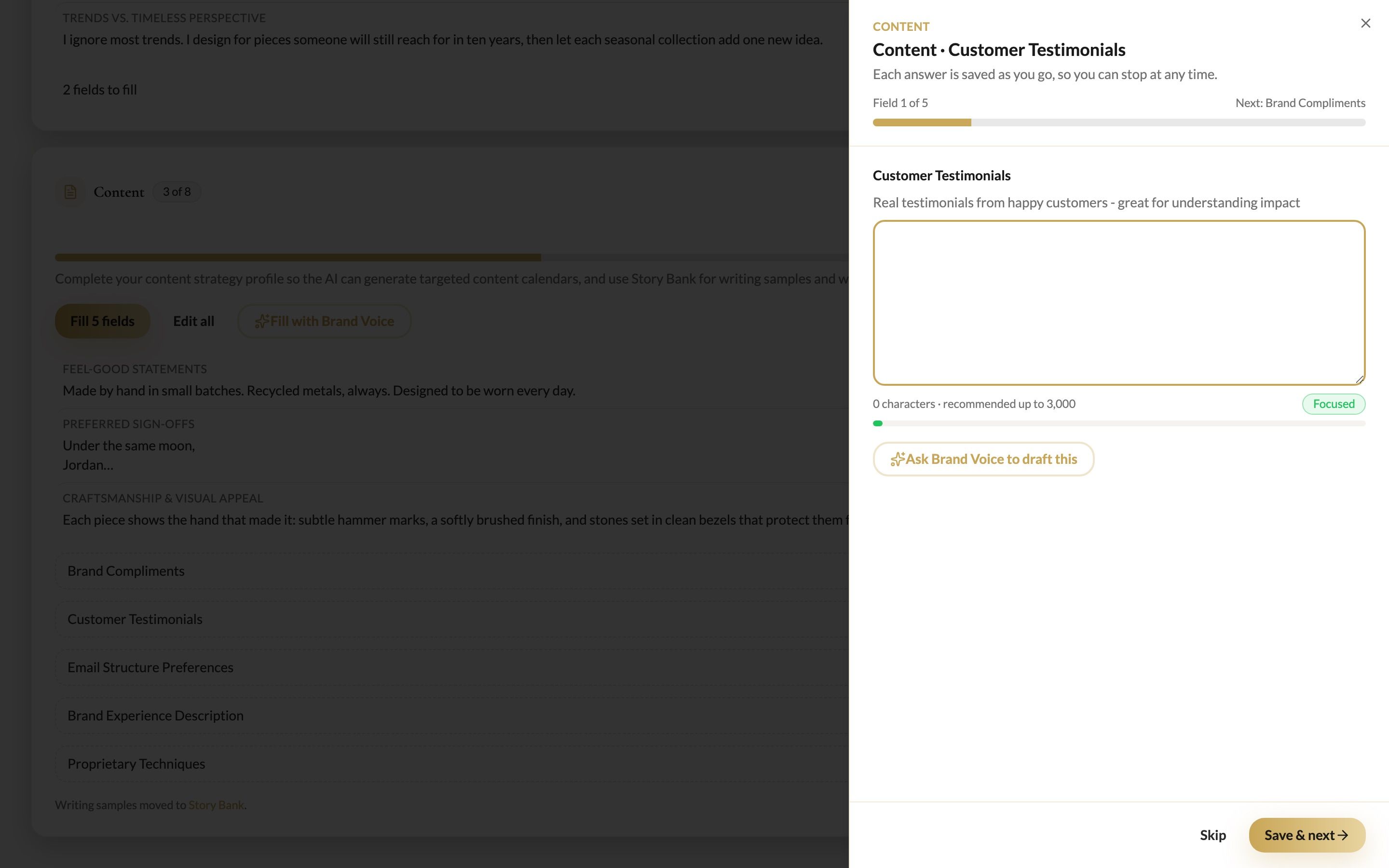
After that, the Next step card always suggests the most useful fields to fill next, with a time estimate. Click Start and you'll be guided through one field at a time.
The five sections
The Brand Profile tab shows every field, grouped into five sections. The completion ring on the right tracks each one.
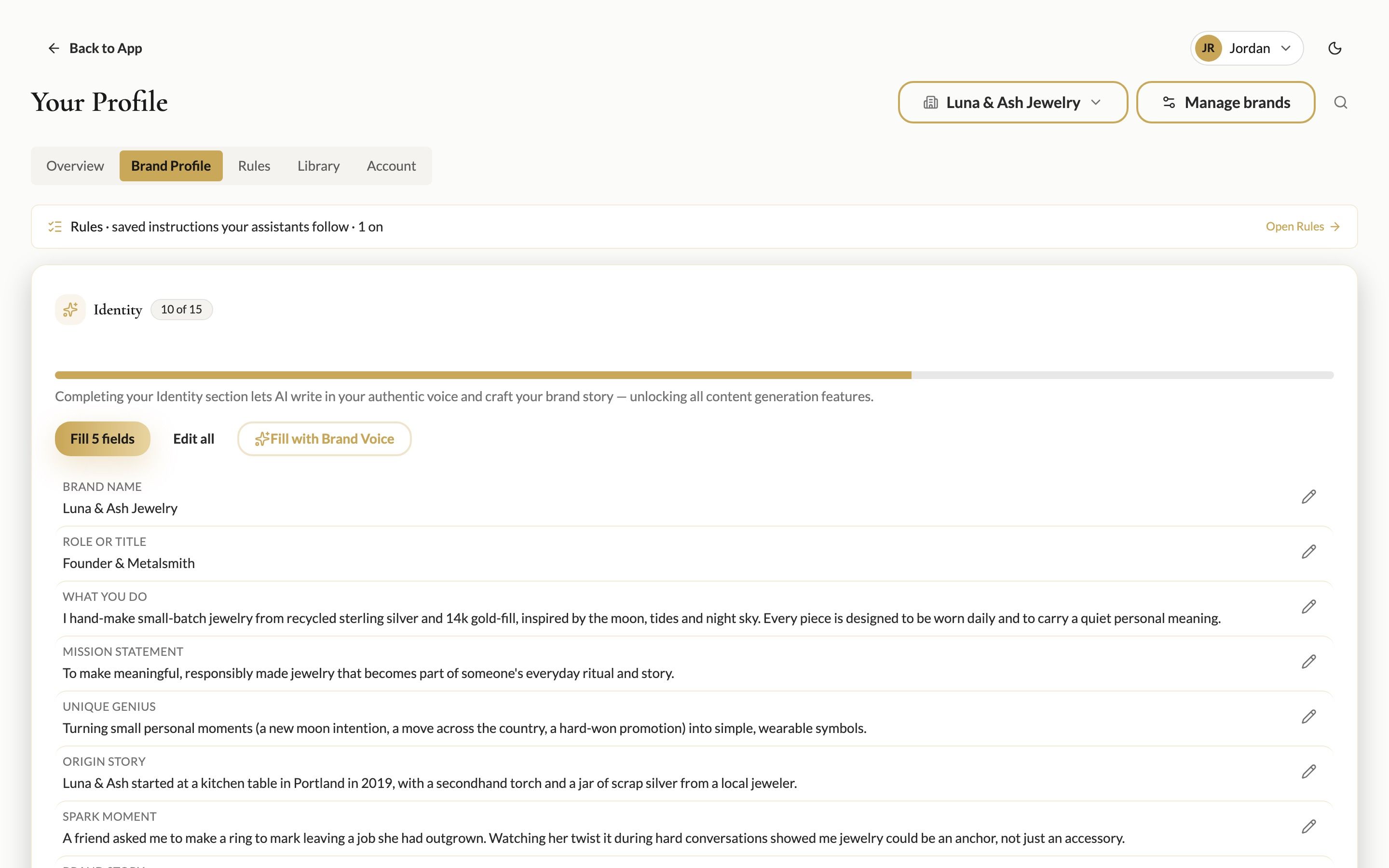
Identity: your story, mission, values and what makes you different.
Dream Client: their challenges, desires and the moments they buy jewelry.
Voice & Tone: how you sound, plus Preferred Words/Phrases and Words to Avoid.
Design: your aesthetic, signature style and the symbolism in your pieces.
Content: sign-offs, compliments customers give you, and how you like emails structured.
Next to each field, click Fill to answer it, or Edit all to edit a whole section at once. Stuck on a blank page? Fill with Brand Voice or Fill with Dream Client opens a chat with that assistant to interview you and suggest answers.
Tips
You don't need 100% before you start. Even 40–50% makes a noticeable difference. The more you complete, the better your results will be.
Be specific. "Moon phases, tide pools, anything you'd find on a night walk by the sea" beats "nature-inspired."
When an assistant suggests a profile update in chat, a Save to Profile button appears under its reply, so you can save it in one click.
Run more than one brand? Each brand has its own profile. Check the brand name at the top before you start typing.
Was this helpful?
Still need help? Ask the team