Documents: create, organize and export
Keep your best copy in Documents, organize it in folders, and export to PDF, Word or Markdown.
Written By Jason
Last updated About 8 hours ago
Documents is your library of finished and in-progress copy: launch emails, product descriptions, caption banks, your brand voice cheat sheet. It lives in the right-hand panel of the chat workspace, so it's always one click away.
Open in Desire AI: Your Documents
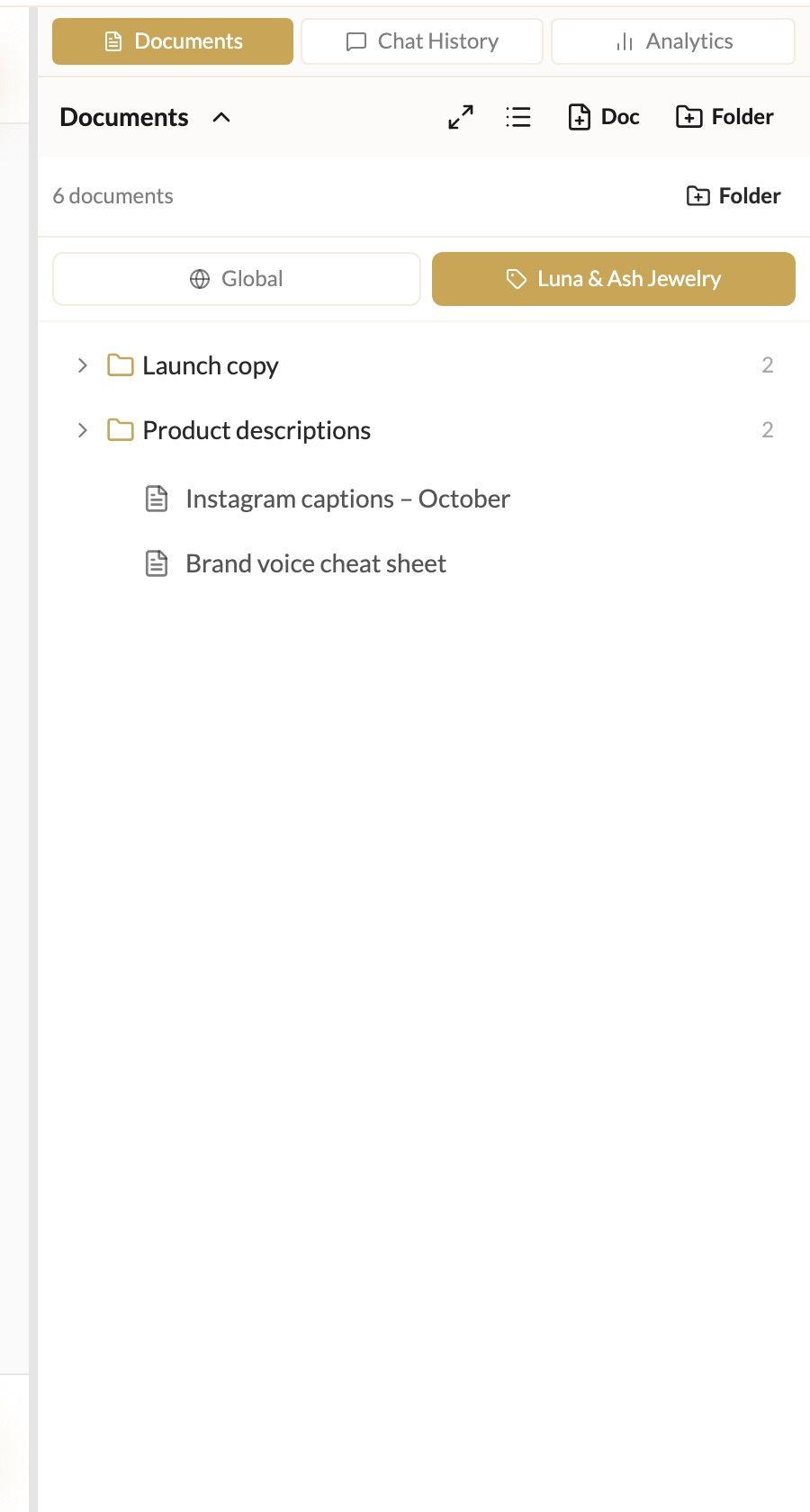
Brand documents and Global documents
At the top of the panel you'll see two buttons:
Your brand's name: documents for the brand you're working on.
Global: documents shared across all your brands, like your shipping policy or bio.
Create a document or folder
Click Doc to create a blank document, or Folder to create a folder.
Inside a folder you can add a New subfolder or Rename folder.
To tidy up, open a document's menu and choose Move to folder, or Move to brand or global.
Most documents start life in a chat. Click Save to Doc under any reply. See Saving replies to documents and your profile.
Edit a document
Click a document to open it in the editor.
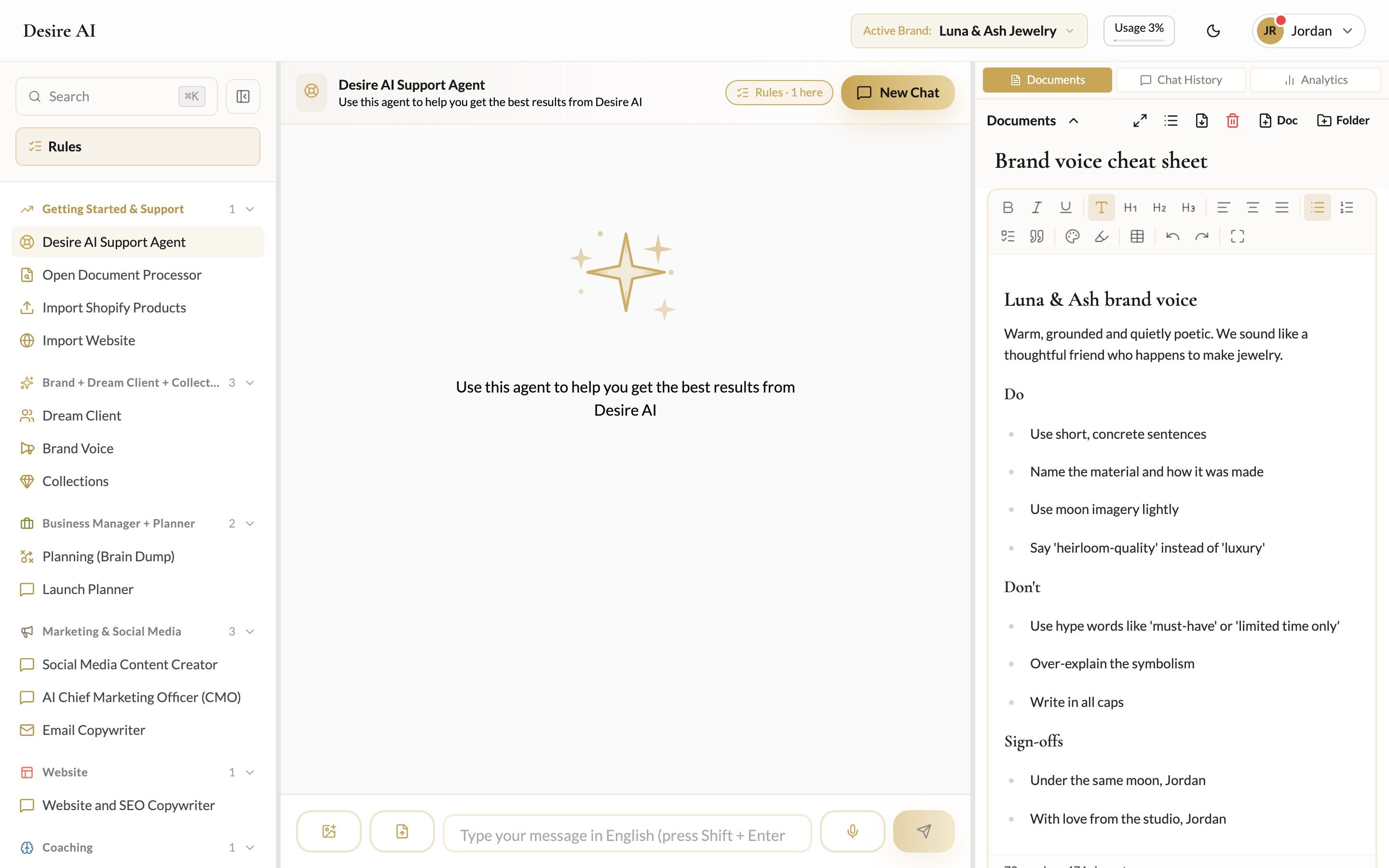
The editor has headings, bullet and numbered lists, checklists, tables, highlights, text color and alignment. Changes save as you type. Click Full screen for a distraction-free view, and Exit full screen to return.
Export
From the document's export menu choose Export as PDF, Export as Word or Export as Markdown. They're useful for sharing with a VA or a wholesale buyer, or for pasting into another tool.
Delete
Choose Delete document from the document's menu. Deleted documents can't be recovered, so export anything you want to keep first.
Was this helpful?
Still need help? Ask the team