Chatting with an assistant
Start a chat, attach images or files, use your voice, and keep long conversations on track.
Written By Jason
Last updated About 8 hours ago
Every assistant works the same way: pick one, tell it what you need, and keep refining until it's right. It already knows your brand profile, so you can skip the background and get straight to the ask.
Open in Desire AI: Your workspace · Which assistant should I use?
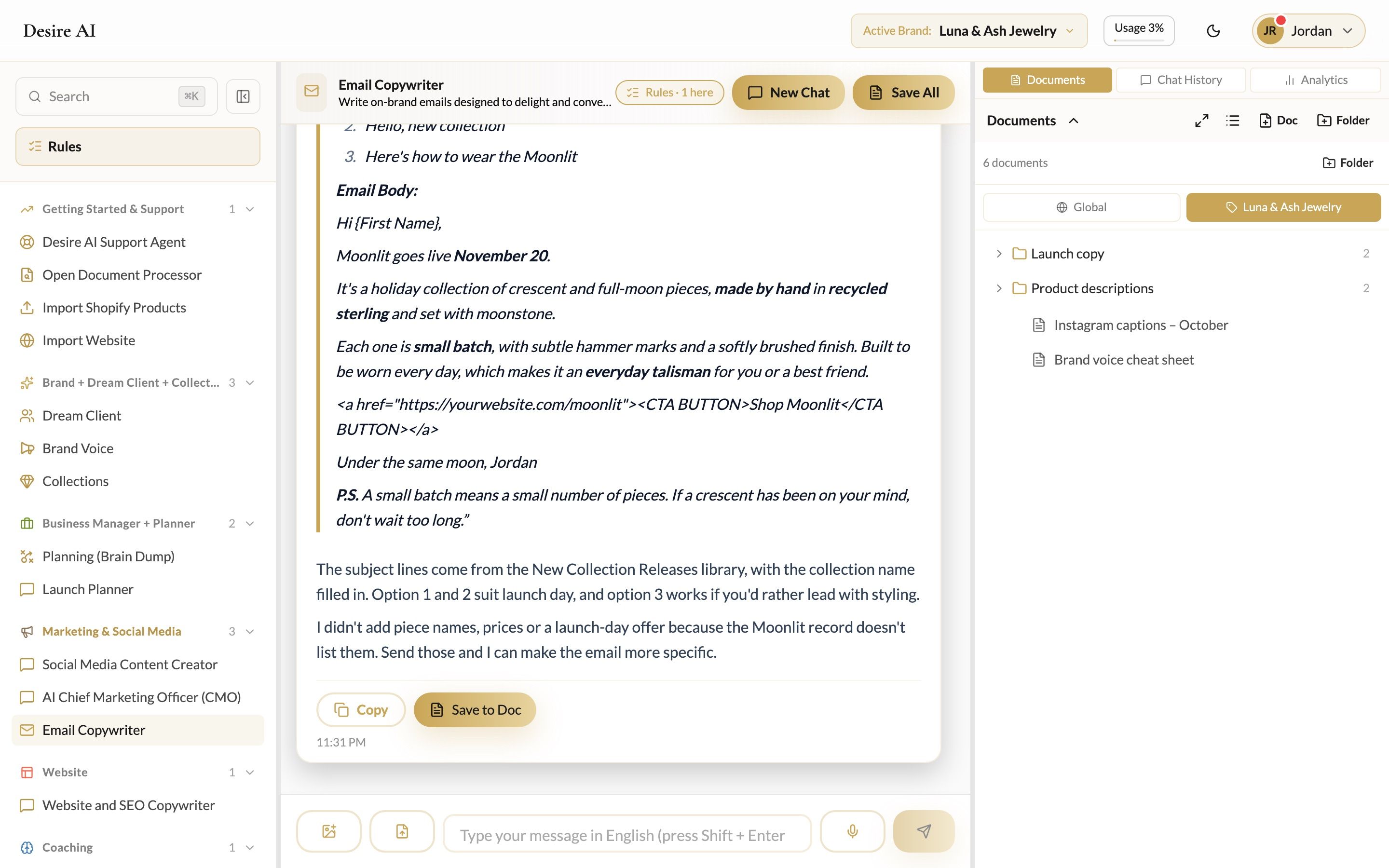
Start a chat
- Click an assistant in the left sidebar.
- Type your request in the message box at the bottom.
- Press Enter to send. Press Shift + Enter for a new line.
Your conversation is saved automatically. Click New Chat in the chat header any time you want a fresh start on a different topic.
Write requests that get great answers
- Say what it's for. "A launch email for my Moonlit collection going live November 20" beats "write an email."
- Give limits. Word counts, number of options, platform ("an Etsy title under 140 characters").
- Refine in the same chat. "Make it warmer," "shorter subject lines," "less salesy." The assistant remembers what you've already discussed.
The message box

- Image button (left): attach up to 5 photos of your pieces, a competitor's post or a screenshot for feedback. Some assistants can't read images yet. If the button is greyed out, hover over it to see why.
- Document button: upload a document to your brand profile. It opens the Document Processor so you can pull the useful parts into your profile or My Files.
- Microphone: talk instead of typing. Voice input uses the language set in My Account.
- Send: sends your message.
Pasting a lot of text
If you paste a very long block (an old About page, a product spreadsheet, a whole website), Desire AI asks what you'd like to do with it:
- Use in This Chat Only: send it as part of this conversation.
- Open Document Processor: pull profile details or reusable content out of it.
- Open Shopify Import: if it's a product export.
- Import Website: fetch your website pages into My Files instead of pasting them.
Saving content to My Files means every assistant can use it later, without you pasting it again.
Long conversations
In a long chat, Desire AI keeps a short summary of what matters. Decisions you've made, Your rules from this chat and Open questions show in a "Keeping in mind" panel. Older messages are summarized so the assistant stays focused. If a chat gets very long, you'll be offered to continue in a fresh chat that carries the summary forward.
Related
Was this helpful?
Still need help? Ask the team