Working with more than one brand
Add brands, switch between them, and choose your default brand.
Written By Jason
Last updated About 8 hours ago
Running a fine jewelry line and a playful earring shop? Give each one its own brand in Desire AI. Every brand has its own profile, documents, chats, library and plans, so the assistants never mix up their voices.
Open in Desire AI: My Profile & Brands (then Manage brands)
Switch brands
Click Active Brand at the top of the chat workspace (or Planning) and pick a brand. Your chats, documents and plans switch to that brand straight away.
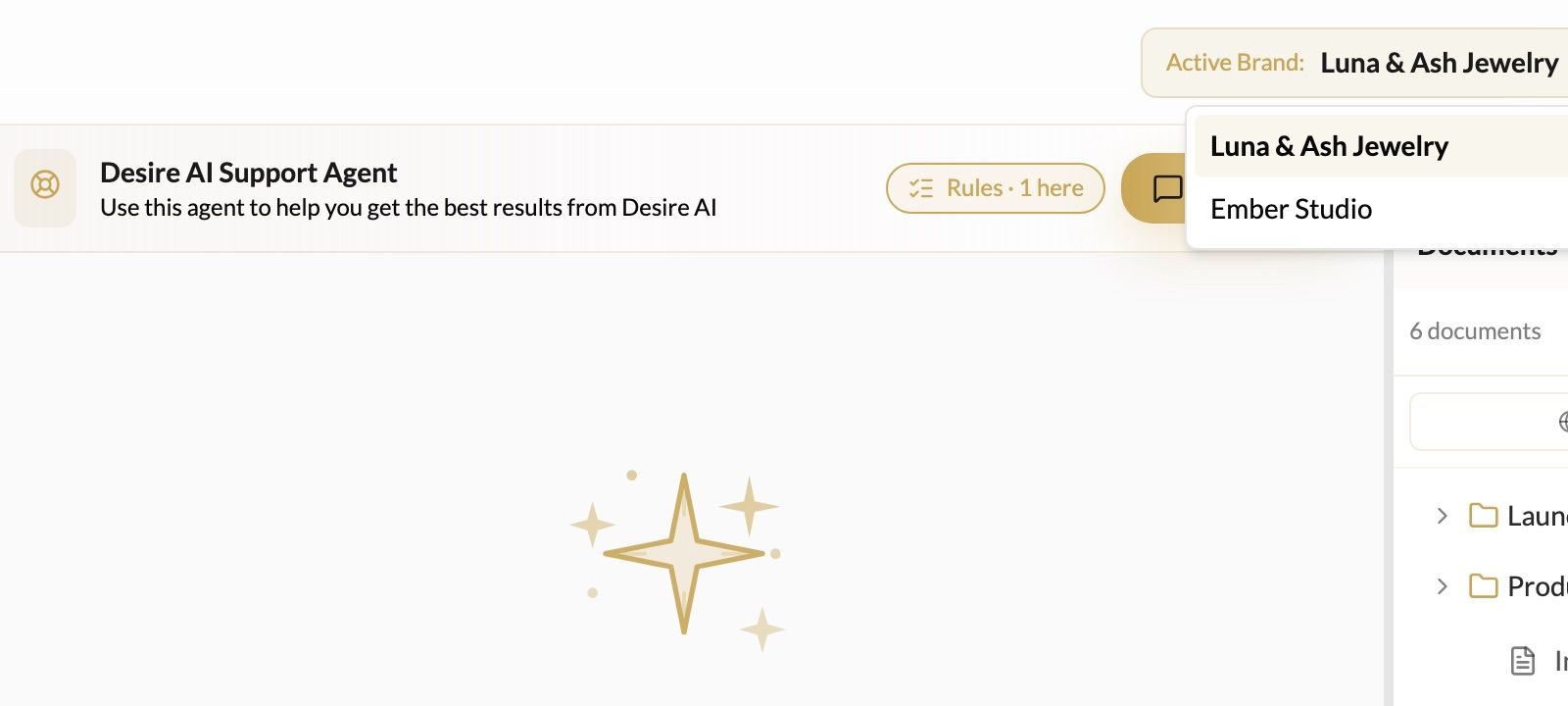
Always glance at Active Brand before you start. Anything you create belongs to the brand that's showing.
Add, edit or remove a brand
- Open the account menu and choose My Profile & Brands.
- Click Manage brands.
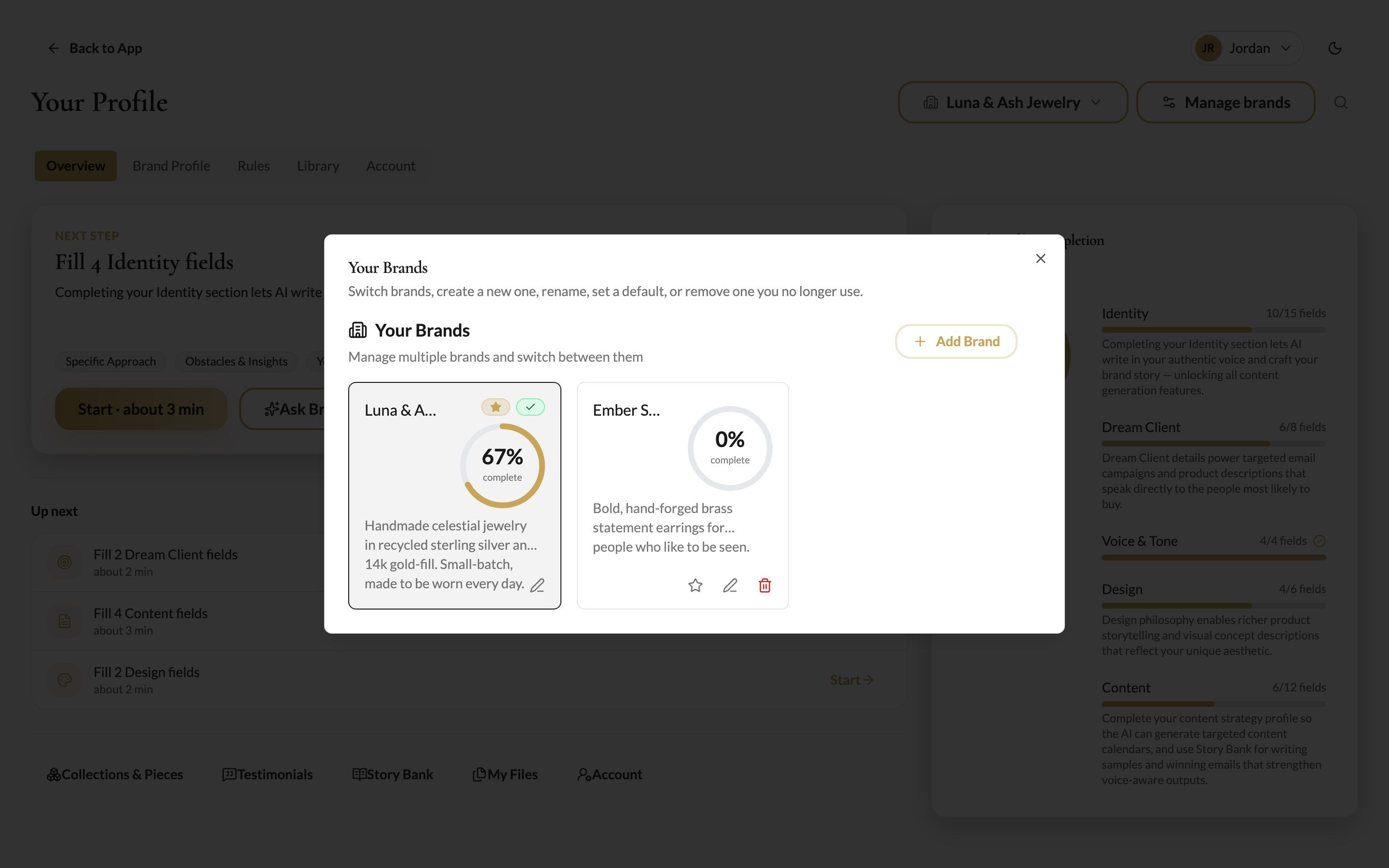
In the Your Brands window:
- Add Brand creates a new brand with an empty profile. Fill in its profile next. See Set up your brand profile.
- The star makes a brand your default, the one Desire AI opens with each time you sign in.
- The pencil lets you rename the brand or change its description.
- The trash can deletes the brand. Only do this if you're sure; the brand's profile and content go with it.
Each card also shows how complete that brand's profile is.
What's shared between brands?
- Shared: your account settings, billing and usage, and documents you put in Global.
- Separate: brand profile, rules, collections and pieces, Story Bank, chats, brand documents and planning.
Was this helpful?
Still need help? Ask the team